
Download Mounty – Free NTFS Remount Tool for macOS
Overview
Mounty is a lightweight, completely free desktop utility for macOS that simplifies the once‑cumbersome process of unmounting and remounting write‑protected NTFS volumes. Developed by indie programmers Chris and Uwe, Mounty replaces manual terminal commands with a few intuitive clicks, allowing you to regain read‑write access to NTFS drives without digging through complex scripts. The app runs discreetly in the background, automatically detecting NTFS partitions and presenting clear visual cues through its status‑bar icon. When a volume is found, Mounty can open a Finder window directly at the mount point and push notifications via the macOS Notification Center, keeping you informed of every successful or failed mount operation. Whether you need to edit files on an external Windows drive, transfer large media libraries, or simply keep a mixed‑OS environment running smoothly, Mounty offers a secure, no‑cost solution that integrates seamlessly with your workflow.
Key Features
- One‑Click Remount: Turn a read‑only NTFS drive into a writable volume with a single mouse click from the menu bar.
- Automatic Detection: The app constantly scans for NTFS partitions and highlights them instantly in the status‑bar icon.
- Visual Status Indicators: Icon colors change to reflect the current state—black (idle), green (ready), yellow (processing), blue (mounted), red (error).
- Notification Center Integration: Receive real‑time alerts whenever Mounty identifies, mounts, or fails to mount an NTFS volume.
- Finder Shortcut: After a successful mount, Mounty can automatically open a Finder window at the mount point, saving you extra navigation steps.
- Background Operation: Runs unobtrusively without slowing down your Mac or interrupting other applications.
- Zero Cost: Completely free to download and use, with no hidden fees or trial periods.
- Secure Execution: Uses macOS native privileges to perform mount operations, ensuring system stability and data integrity.
Installation, Usage & Compatibility
Getting started with Mounty is straightforward. First, download the latest Mounty installer from the official website. The dmg file is signed by the developers, guaranteeing a secure download free from malware. Open the dmg and drag the Mounty icon into your Applications folder. macOS will prompt you to confirm the move; simply click “Copy.”
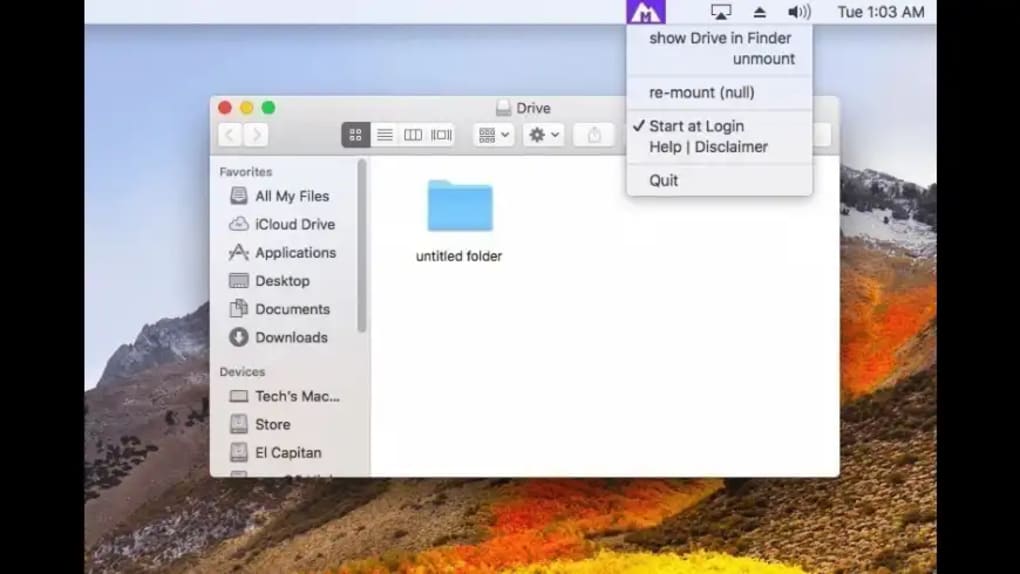
After installation, launch Mounty from the Applications folder. The app will request administrator privileges the first time it attempts to mount a volume—this is required because NTFS mounting involves low‑level system changes. Enter your admin password, and Mounty will place its icon in the menu bar.
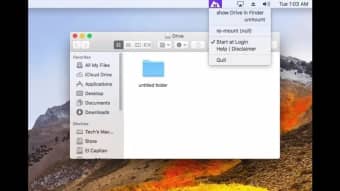
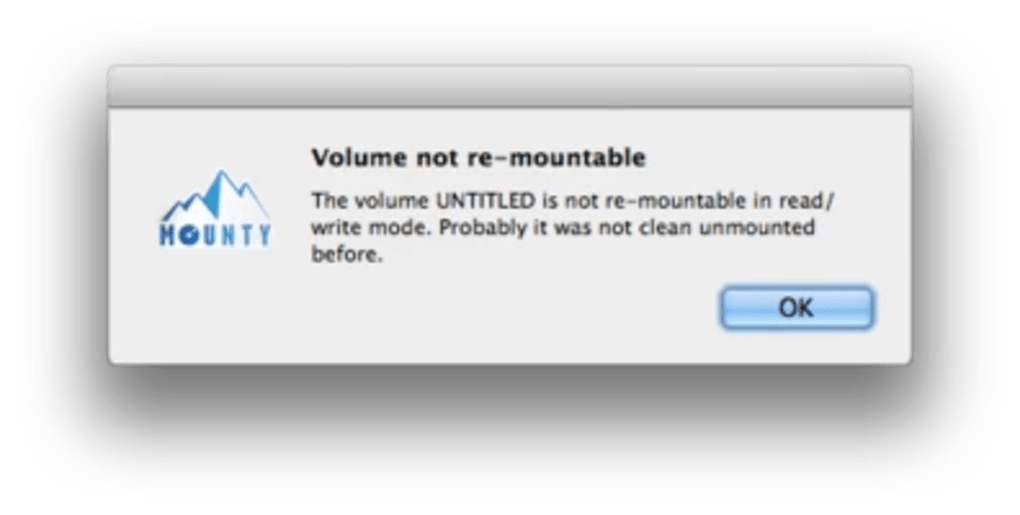
From there, you can click the icon to see a list of detected NTFS drives. Selecting a drive and choosing “Mount” will instantly remount the volume with read‑write access. If a mount fails, the icon turns red and a detailed error message appears in the Notification Center, guiding you toward a solution.
Mounty is designed specifically for macOS 10.12 (Sierra) and later, including macOS Ventura and Sonoma. It works on both Intel‑based Macs and Apple Silicon (M1, M2) machines, thanks to universal binary packaging. While the core functionality focuses on NTFS, the app does not interfere with other file systems such as APFS, HFS+, or exFAT. Users who rely on third‑party NTFS drivers (e.g., Paragon NTFS, Tuxera) may notice that Mounty does not override those solutions; instead, it respects the existing driver hierarchy to avoid conflicts.
For best performance, keep Mounty updated via the built‑in “Check for Updates” menu item. Updates are released periodically to address compatibility with new macOS releases and to improve stability. Because the application runs in the background, you can safely close the Finder window or log out of your user account without losing the mount state; the volume remains writable until you manually unmount it or shut down the computer.
Pros, Cons & Frequently Asked Questions
Pros
- Completely free with no hidden costs.
- One‑click mounting eliminates the need for terminal commands.
- Clear visual status indicators make troubleshooting easy.
- Runs silently in the background without impacting system performance.
- Native macOS integration ensures secure and stable operation.
Cons
- Cannot remount NTFS volumes that have been renamed by third‑party tools.
- Limited to macOS; no Windows, Linux, Android, or iOS versions.
- Relies on administrator privileges, which may be inconvenient for shared computers.
- No built‑in file‑transfer manager; users must use Finder or other apps for data movement.
FAQ
Do I need an internet connection to use Mounty?
No. Mounty works entirely offline after it has been installed. An internet connection is only required to download the installer or check for updates.
Can Mounty mount encrypted NTFS drives?
Mounty does not provide encryption handling. The drive must be unlocked at the OS level before Mounty can remount it with write access.
Is Mounty safe for SSDs and external HDDs?
Yes. Mounty uses standard macOS mounting APIs, which are safe for all storage media types, including SSDs, external HDDs, and USB flash drives.
What should I do if the icon stays red after a mount attempt?
A red icon indicates a failure. Check the Notification Center for an error message—common causes are insufficient permissions, a corrupted NTFS file system, or a conflict with another NTFS driver. Re‑plugging the drive or restarting the Mac often resolves the issue.
Does Mounty support automatic mounting on startup?
Mounty does not automatically mount drives on boot, but you can enable “Launch at Login” in the app’s preferences. Once the app starts, it will immediately scan for NTFS volumes and present them for one‑click mounting.
Review Summary
Mounty delivers on its promise of a fast, free, and secure solution for macOS users who need write access to NTFS drives. Its intuitive UI and clear status icons make it accessible to both power users and beginners. While it lacks advanced features like automatic mounting and support for renamed volumes, the core functionality works reliably across Intel and Apple Silicon Macs. For anyone who frequently swaps files between Windows and macOS, Mounty is a must‑have utility.
Conclusion & Call to Action
If you’re tired of typing complex mount commands or paying for third‑party NTFS drivers, Mounty offers a seamless, cost‑free alternative that integrates directly into macOS. Its background operation, clear visual cues, and Notification Center alerts give you confidence that your NTFS volumes are ready whenever you need them. Download Mounty today, add it to your startup items for instant availability, and enjoy hassle‑free read‑write access to all your Windows‑formatted drives.







